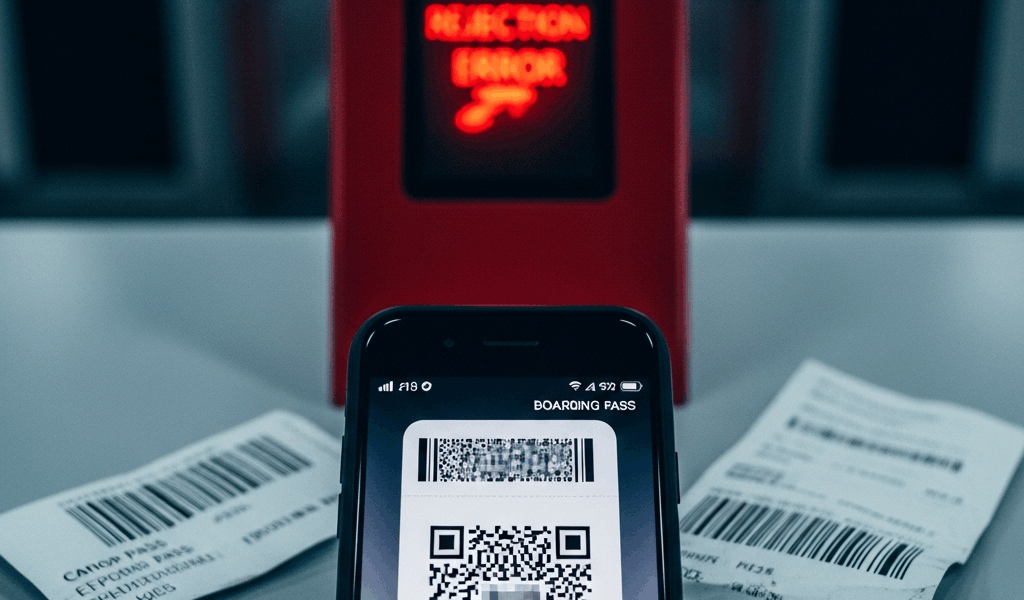
Why Boarding Passes Fail to Scan
Boarding passes have gotten complicated with all the mobile app nonsense flying around. Your phone won’t scan. The gate agent is smacking the reader against your screen like that’s going to help. Eight minutes until your flight boards.
Here’s the thing most travelers don’t know: this happens to about one in every 200 people, and it almost never means your seat is gone. There are five specific failure points — each one has its own fix. Screen brightness too low. Expired barcode from an idle app. Accidental double check-in. Name mismatch the TSA flagged. Or you’re scanning last Tuesday’s flight entirely. That last one gets people more than you’d think.
But what is a barcode failure, really? In essence, it’s a communication breakdown between your phone’s display and the scanner’s infrared reader. But it’s much more than that — it’s often a cascade of small errors that look identical from the outside. Which problem you’re actually facing matters enormously, because the fixes are completely different. One takes ten seconds. Another requires a phone call. Knowing the order to check them keeps you moving instead of freezing up at the gate.
Step One — Fix the Easy Stuff First
Start here. Always. Seventy percent of scan failures solve themselves in the next thirty seconds.
Brightness. Open your control center and drag that slider all the way to maximum — at least if you want the scanner to actually see your barcode. Barcode readers use infrared light, and a phone screen sitting at 60% brightness looks like a ghost image to the hardware. I’m apparently someone who keeps their iPhone 14 Pro dimmed to 40% constantly, and that killed me twice before I figured it out. Don’t make my mistake.
Brightness already maxed? Close the airline app completely. Not just swipe away from it — go into your app switcher, swipe up on the icon, force-close the whole thing. Wait five actual seconds. Reopen it. Navigate back to your boarding pass.
Mobile barcodes expire. Not your actual reservation — just the barcode image sitting on your screen. Lock your phone for an hour, come back, and that barcode is stale. The scanner rejects it cold. Reopening the app forces a fresh barcode to generate, which works instantly. This fix alone has saved me probably six or seven connections over the years, most memorably at O’Hare on a January morning when I was already running late.
Still nothing? Toggle airplane mode on, count to three, toggle it off. Refreshes your connection to the airline’s servers and regenerates the barcode through a different channel entirely. I learned this the hard way missing a connection in Denver last year — $14 airport sandwich while waiting for the next flight, totally avoidable.
One more fast check: dark mode conflicts. Some airline apps fight with your phone’s system display settings and create contrast problems the scanner hates. Flip your phone temporarily to light mode. Some apps — Delta’s is notorious for this — have their own separate dark mode toggle buried inside the boarding pass screen itself. Poke around in there.
When the Gate Agent Cannot Get It to Scan
You’ve done all of that. Barcode still won’t budge. The gate agent is already waving the next passenger through. This is where most people make the critical mistake of stepping aside and waiting.
Don’t. Politely interrupt and ask for manual entry. Say exactly this: “Can you manually enter my confirmation number? It’s [your number]. My app isn’t cooperating today.” That phrasing matters — “isn’t cooperating” signals you’re a regular traveler, not someone trying to sneak through.
Gate agents have a completely separate system for this. They type in your confirmation number, pull up your booking without ever touching the barcode, and print a paper pass right there at the gate podium. Ninety seconds, start to finish. You walk down the jetway.
Before they start typing, though — confirm your seat assignment aloud. Ask them to read it back. This prevents the maddening scenario where you end up with a paper pass showing 27C when you paid $45 to select 14B six weeks ago. The agent will see your seat while they’re in your record. If it’s changed for any reason, ask why before you accept that paper pass. That’s your leverage moment.
The whole interaction should take under two minutes. You do not need to call the airline. You do not need to hike back to the ticket counter. Gate agents handle this daily — multiple times per shift, actually — and they have full authority to resolve it on the spot.
If There Is a Name Mismatch or Duplicate Booking
Occasionally the barcode itself isn’t the problem. It’s your actual booking. That’s a different situation entirely.
Open your airline app right now. Do you see two boarding passes for the same flight? Frustrated by an accidentally tapped button during check-in, many travelers end up with duplicate reservations without realizing it until the gate. The system reads duplicates as potential fraud and locks the entire booking — both passes become unscannable. You need to cancel one immediately. Go into app settings, find “manage reservations,” look for a cancel option on the duplicate entry. Can’t find it? Call the airline’s customer service line while you’re standing right there in the gate area — have your confirmation number ready, they can kill the duplicate in about 60 seconds.
This new duplicate-detection system took off several years later after a wave of ticket fraud and eventually evolved into the aggressive lockout behavior frequent flyers know and quietly curse today.
Name mismatches are trickier. Middle initials matter. Hyphens matter. The “Jr.” your dad insists on using matters. TSA flags these when your boarding pass name doesn’t match your ID exactly, and losing your PreCheck indicator is usually the first symptom something’s wrong. Go to the ticket counter for this one — not the gate. The ticket counter can reissue with corrected information. Bring your ID so they can see exactly what name needs to be matched.
How to Avoid Boarding Pass Scan Problems Next Time
Probably should have opened with this section, honestly.
Download your boarding pass to Apple Wallet or Google Wallet the moment you check in. These apps display the pass differently and use encrypted communication with the airline’s backend. Scanners read wallet passes even when the airline’s own app is having a meltdown. While you won’t need to become a tech expert, you will need a handful of minutes to set this up before your next trip — it’s worth every second.
Check in exactly 24 hours before departure. Not 25, not 26. Barcodes generated more than 23 hours early sometimes corrupt in the system — I noticed this first on a United flight out of LAX in 2022 and have timed my check-ins precisely ever since. Hitting that window matters more than most people realize.
Screenshot your barcode as a backup. Text it to yourself. Email it to yourself. If the app completely implodes at the gate, a screenshot gives you visual proof of your booking that agents can reference while manually entering your confirmation.
For international flights, print a paper backup at home — actually print it, on actual paper. Use the airline website, pull up your confirmed reservation, print the boarding pass. Keep it folded in your carry-on. International scanning requirements run stricter, and a paper backup eliminates the stress entirely. Apple Wallet might be the best option domestically, as international travel requires redundancy. That is because overseas airport tech varies wildly and your American carrier’s app may not handshake cleanly with foreign scanning hardware.
This is fixable. Every single scenario here gets handled by gate agents multiple times per shift. You will make your flight.

Stay in the loop
Get the latest airport guides world updates delivered to your inbox.